
How to Import Trades from a CSV File
QuantLog imports your broker's trade history in four steps: upload, map columns, review, done. This guide walks through each step — with special attention to the review screen, where you decide exactly what gets imported and how trades are grouped.
Export your trade history from your broker
In your broker's platform, open the trade history or account activity section and export your executions as a CSV or Excel file. Export actual executed trades — not a positions snapshot.
- Include every column available: date, symbol, side, quantity, price and fees give QuantLog everything it needs
- Files up to 5MB — split longer histories into several files and import them one by one
- Bitacorale users: export as .xlsx and upload the file directly
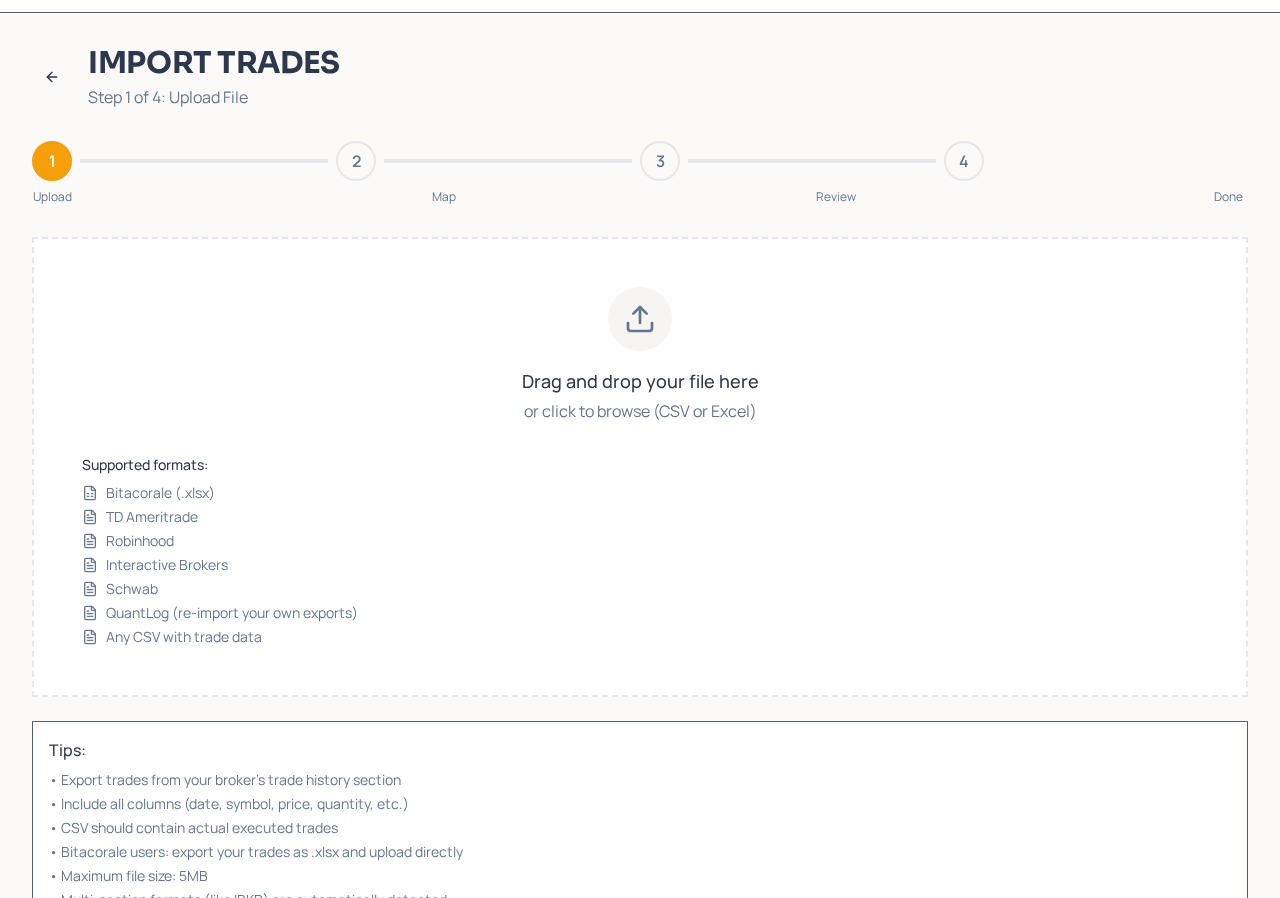
Upload the file
Go to Trades → Import and drag your file onto the upload area. QuantLog automatically detects TD Ameritrade, Charles Schwab, Robinhood, Interactive Brokers, Bitacorale and QuantLog's own exports — including multi-section formats like IBKR's. If your broker isn't recognized, no problem: you'll map the columns yourself in the next step.
- Supported formats: TD Ameritrade, Schwab, Robinhood, Interactive Brokers, Bitacorale (.xlsx), QuantLog exports, and any CSV with trade data
- The import page also shows your recent imports so you can track what you've already uploaded
Map the columns
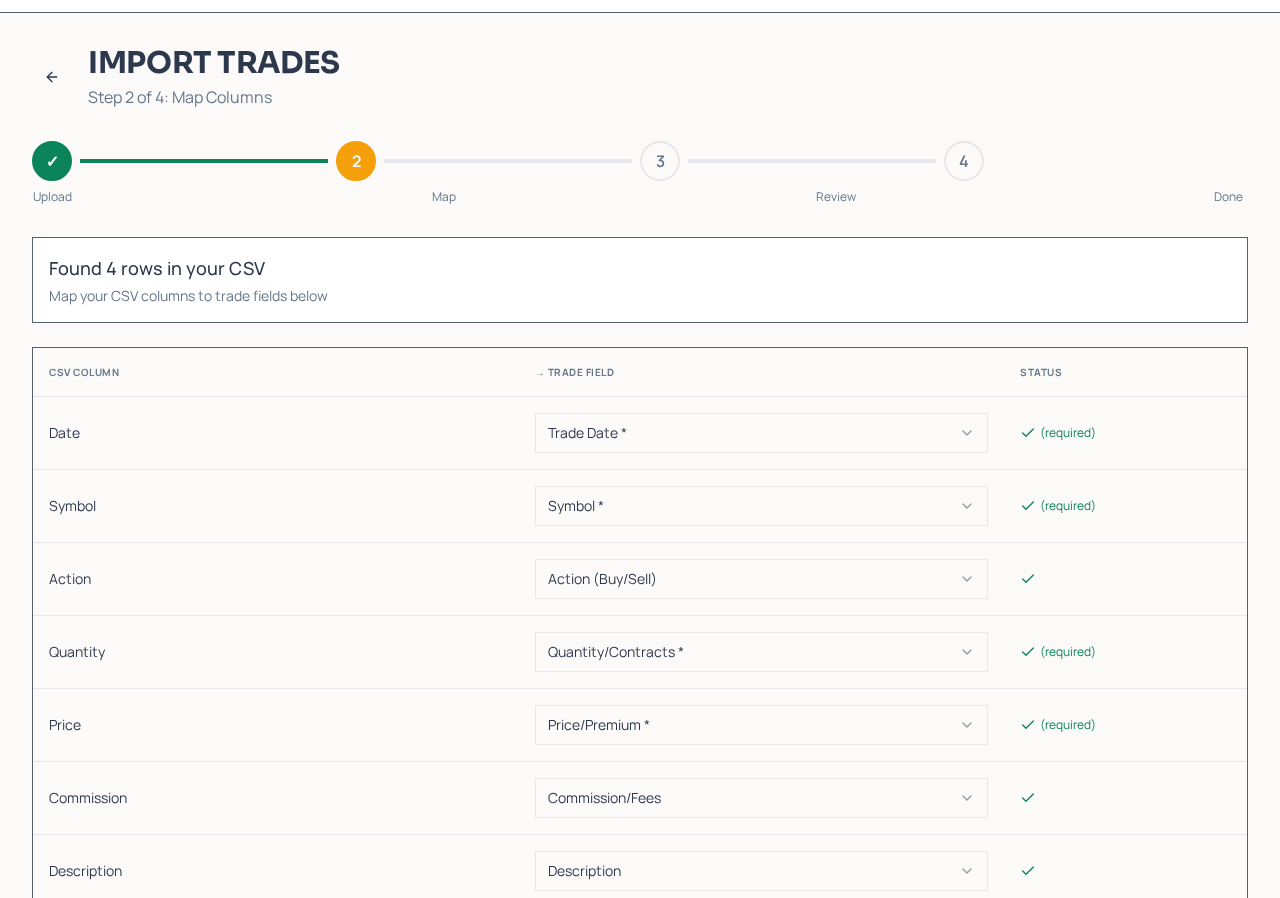
For known brokers the mapping is automatic. For other files, match each CSV column to a trade field. A preview of the first 5 rows lets you confirm everything lines up before continuing.
- Required fields are marked — date, symbol, side, quantity and price are the essentials
- Robinhood users: Robinhood charges a per-contract option fee that isn't in the CSV, so QuantLog adds it automatically. You can adjust the amount or set it to 0 to skip
Review what was found
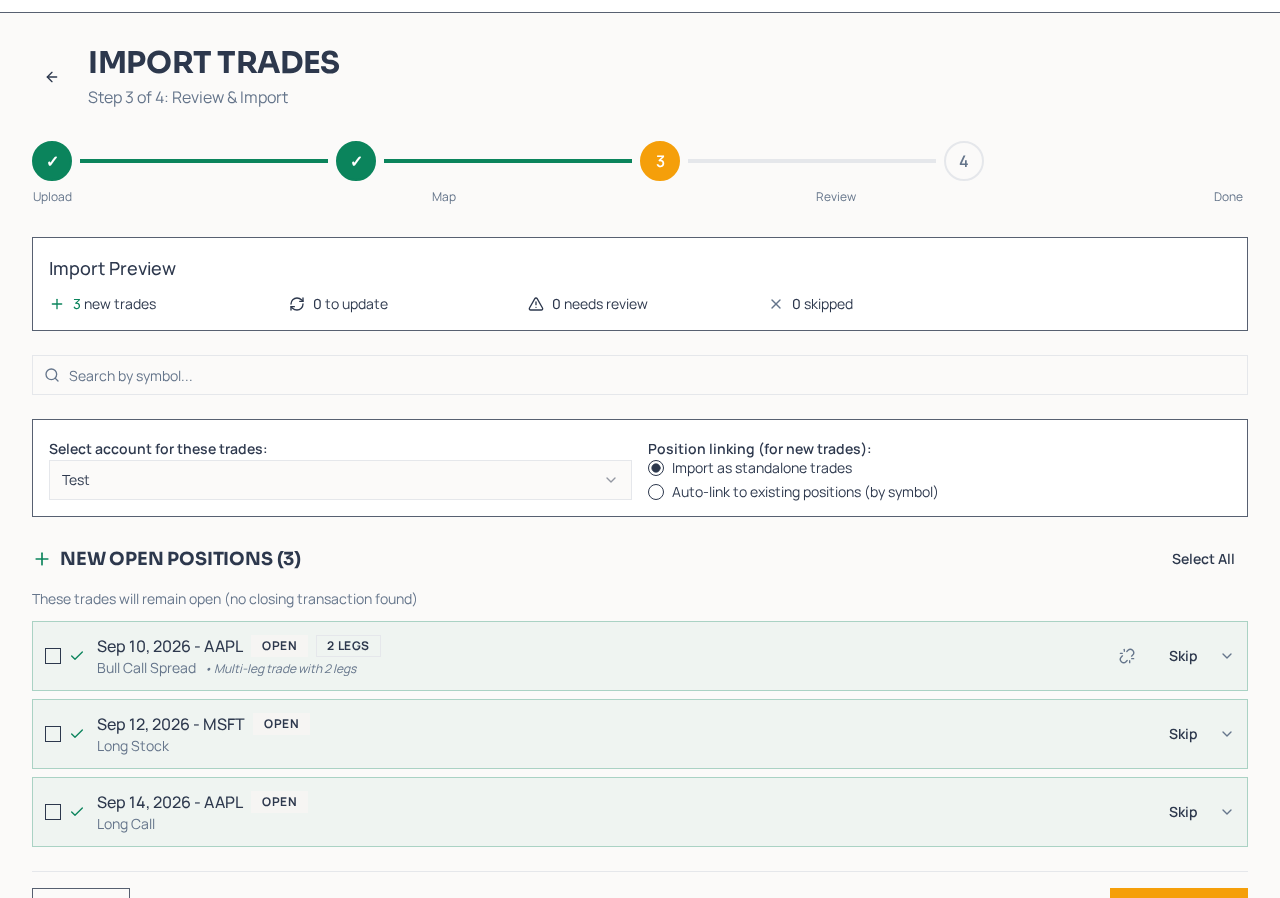
The review screen organizes everything into clear sections before anything is saved. Start by choosing the target account at the top — every imported trade goes into that account.
- Updates to Existing Trades — closing transactions that match trades already open in your account. Importing them closes those trades.
- Complete Trades — both the opening and closing transactions are in the file, so they import as finished trades.
- New Open Positions — no closing transaction found; these stay open in your journal.
- Needs Review — trades with issues or no matching open position. Check these before importing.
- Dividends — detected dividend payments. Select dividends to link them to a position.
Skip, group, regroup and link
The review step gives you full control over how trades land in your journal. Use the search box to find trades by symbol, then select trades to act on them.
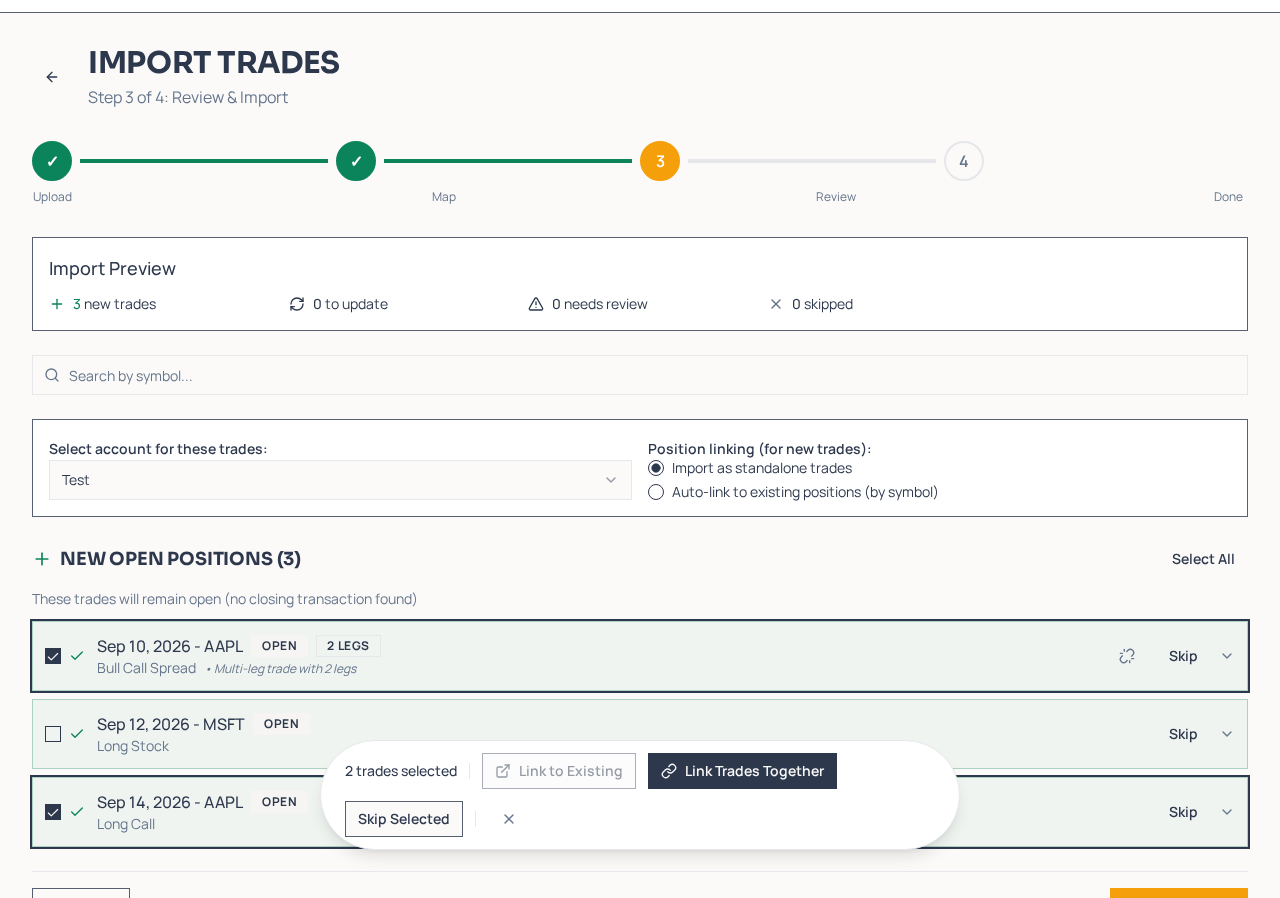
- Skip — move any trade to the Skipped section (or use Skip Selected for a batch). Undo brings it back.
- Link Trades Together — select 2 or more trades of the same symbol to group them into a single multi-leg trade group, like the legs of a spread.
- Group and regroup legs — rearrange the legs inside a trade card to fix how a strategy was detected. Cards that update an existing trade keep their close instruction and can't be regrouped.
- Link to Existing — attach selected trades or dividends to a position already in your account.
- Position linking mode — import as standalone trades, or auto-link new trades to existing positions by symbol.
Import and check the summary
Click Import and QuantLog saves everything. The final screen shows the full summary: open positions created, closed trades, dividends imported, trades linked to existing positions, standalone trades, skipped and any failures.
- If anything failed, download the error report to see exactly which rows and why
- Jump straight to the Dashboard or the Trades page to see your imported data
Frequently asked questions
Which brokers can I import from?
QuantLog auto-detects TD Ameritrade, Charles Schwab, Robinhood, Interactive Brokers and Bitacorale, and can re-import QuantLog's own exports. Any other broker works too — export a CSV and map the columns manually. Interactive Brokers users can also connect direct automatic sync instead of importing files.
Can I import Excel files?
Yes. Excel (.xlsx) files are supported, including Bitacorale exports which are detected automatically.
Will importing create duplicates of trades I already have?
Closing transactions are matched to your open trades and shown as 'Updates to Existing Trades' rather than new entries. The review screen always shows exactly what will happen before anything is saved — and you can skip anything you don't want.
How are spreads and multi-leg strategies grouped?
QuantLog detects strategies automatically and groups the legs. At the review step you can fix anything: select trades and use Link Trades Together to group them, or regroup the legs inside a trade card.
Can I undo an import?
During review, skip anything you don't want imported. After importing, you can delete the trades from the Trades page — use the filters to find the imported batch.
Is there a file size limit?
Files up to 5MB. For long trading histories, export year by year and import the files one at a time, oldest first.